
How to Export Your Kindle Highlights (iPhone, Android and Kindle e-reader)
I have hundreds of Kindle highlights. For years they sat in the Kindle app, in a list I never opened. Highlighting felt like learning, but the highlights themselves did nothing for me until I got them out of Kindle and started looking at them again.
The good news: you don't need a computer, a browser extension or a paid tool to export them. The Kindle app and Kindle e-readers can export every highlight and note from a book in a few taps. I tested each method below on real devices while building Kindle import for Bloomind.
Quick answer
In the Kindle app, open the book, tap the Notebook icon (top right), then Share → Export notebook. On iPhone you get an HTML file; on Android you get a PDF by email. On a Kindle e-reader, open the book's Notebook and tap Export notes, and Amazon emails you the file.
How to export Kindle highlights on iPhone
- Open the Kindle app and open the book.
- Tap the middle of the page to show the menu, then tap the Notebook icon (top right).
- Tap Share (top right), then Export notebook.
- If it asks for a citation style, choose None.
- Send it to yourself by email, or save it to Files.
You get an HTML file named <Book title> - Notebook.html. It has the title, the author, the chapters, and every highlight and note with its page or location.
How to export Kindle highlights on Android
- Open the Kindle app and open the book.
- Tap the middle of the page, then tap the Notebook icon (top right).
- Tap Share (top right), then Export notebook.
- The Kindle app only offers email here, so send it to your own address.
The email has a PDF attached, named Notebook - <Book title>.pdf, with every highlight, its page and the date you made it.
How to export highlights from a Kindle e-reader (Paperwhite, Oasis, Scribe)
- Open the book on your Kindle.
- Tap the top of the screen, open the menu and choose Notebook.
- Tap Export notes and confirm.
Amazon emails the export to the address on your Amazon account. Use the PDF attachment: it has the same layout as the Android export.
What about read.amazon.com/notebook?
The Kindle notebook page shows all your highlights, book by book, in a browser. It's a good place to look through them, but it has no export button. Tools that sync from it use a browser extension. For a clean file, use the app or e-reader export above.
Why are some highlights missing?
- Export limits. Publishers can limit how much of a book can be exported. Once you reach that limit, the remaining highlights are left out of the export. Your own documents sent to Kindle aren't limited.
- Not synced yet. Highlights made on another device show up only after it syncs. Open the book on that device while online, then export again.
- Odd book titles. Books you loaded as files often use the file name as the title, such as Author - Title_ subtitle-Publisher (2004).
Now bring your highlights back to life
An export is only a file. To remember what you highlighted, you need to see it again, a little at a time, right as you're starting to forget it. That's what I built Bloomind for. It's free, with no subscription.
- Send the file to Bloomind. Open the email attachment (or the file in Files), tap Share and choose Bloomind. You can also go to Settings → Import notes → Kindle in the app and pick the file.
- Keep the highlights worth keeping. Bloomind lists every highlight from the book. Untick the ones you don't need and choose a life area for the rest.
- Revisit them for 2 minutes a day. Bloomind shows one highlight at a time and asks "Remember this?". The ones you know come back less often, and the ones you're forgetting come back sooner.
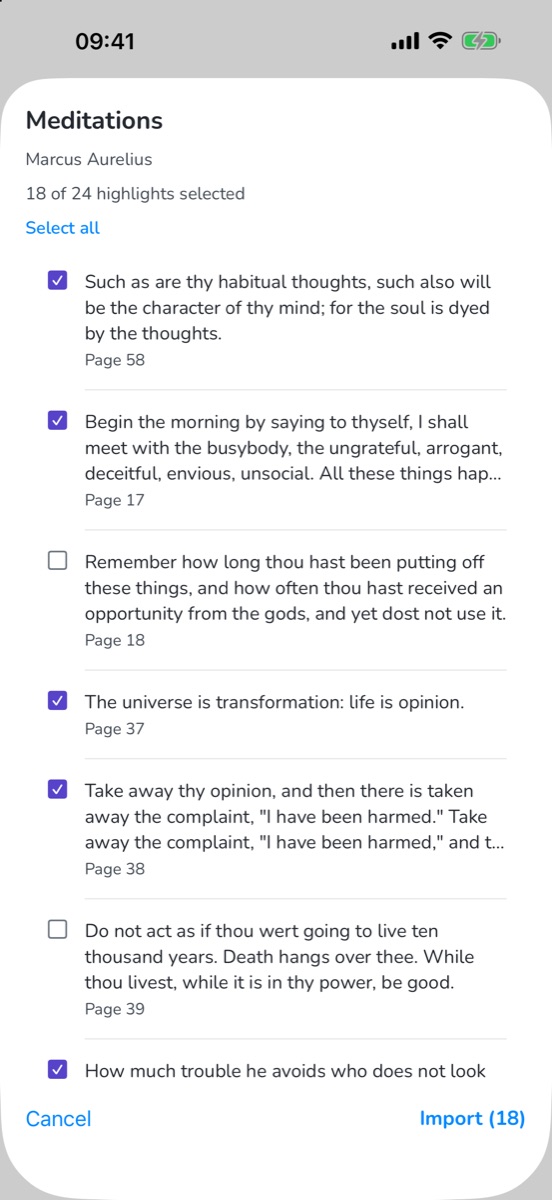
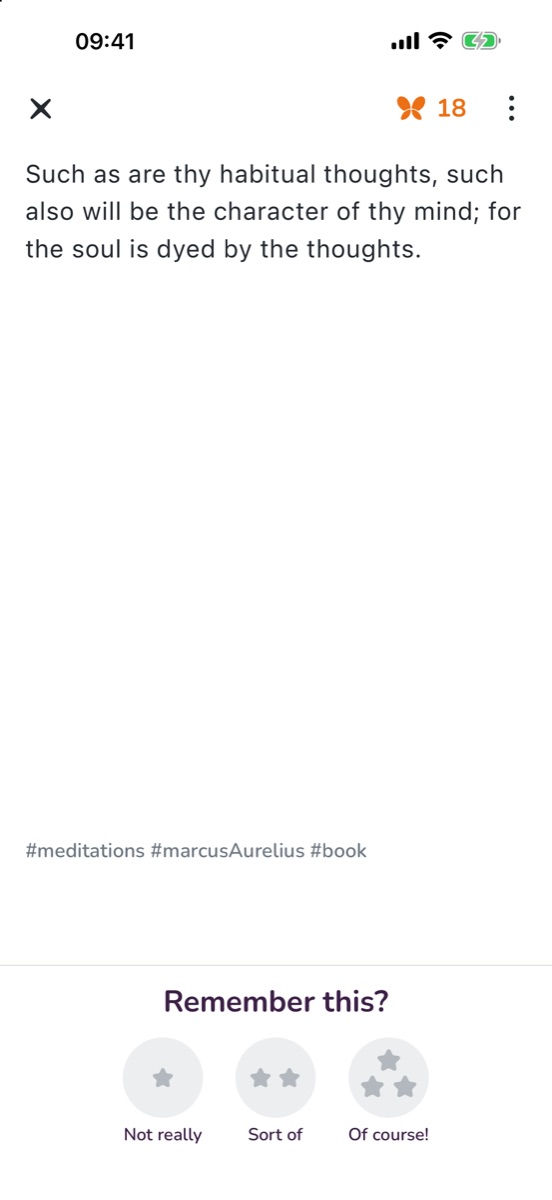
Every imported highlight is tagged with its book and author, like #meditations #marcusAurelius #book, so you can search for a book and revisit just that one. Bloomind doesn't need your Amazon login: you export the file and decide what goes in. For now, Bloomind reads exports from the Kindle app set to English.
Coming from Readwise? Export your Readwise CSV and import every book at once, choosing the books you want. If you want the science behind daily review, read how to remember what you read.
Frequently asked questions
Can I export all my Kindle highlights at once?
Not from the Kindle app. Each export covers one book, so you export the books you care about one at a time. Readwise syncs every book automatically for a subscription; if you already use Readwise, export its CSV and import your whole library into Bloomind in one go.
Why are some of my highlights missing from the export?
Publishers can limit how much of a book can be exported. When you reach that limit, Amazon leaves the remaining highlights out of the export. Your own documents that you sent to Kindle are not limited.
Can I export highlights from read.amazon.com/notebook?
The Kindle notebook page at read.amazon.com/notebook shows all your highlights by book, but it has no export button. Use the Kindle app or your Kindle e-reader to export them.
Do I need to connect my Amazon account to Bloomind?
No. You export the notebook from Kindle yourself and share the file with Bloomind. Bloomind never asks for your Amazon login.
Bring your Kindle highlights back to life
Import a Kindle book in seconds and revisit your highlights for 2 minutes a day. Free on iOS and Android, no subscription.